


字典数据
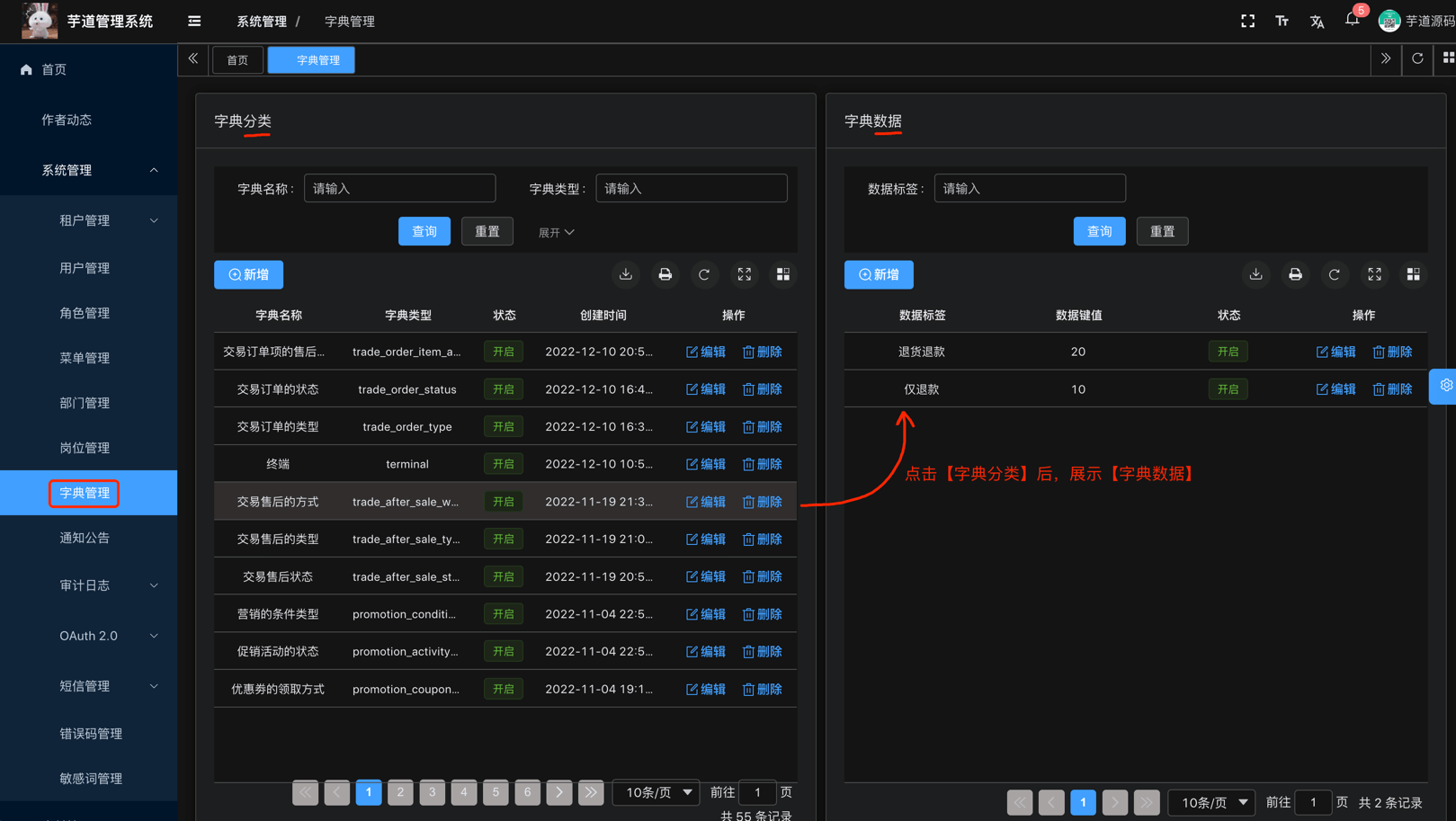
本小节,讲解前端如何使用 [系统管理 -> 字典管理] 菜单的字典数据,例如说字典数据的下拉框、单选 / 多选按钮、高亮展示等等。
1. 全局缓存
用户登录成功后,前端会从后端获取到全量的字典数据,缓存在 store 中。如下图所示:
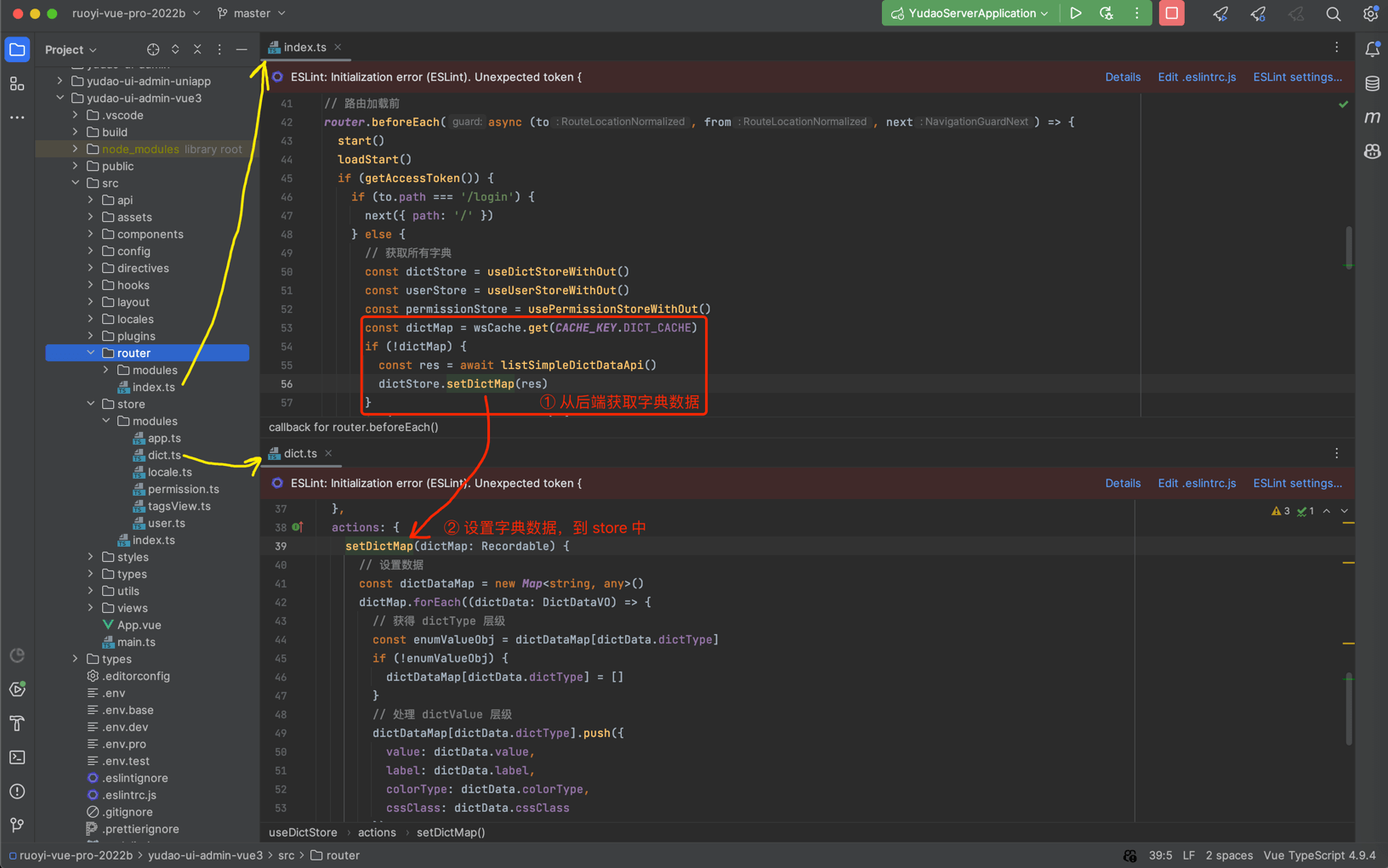
这样,前端在使用到字典数据时,无需重复请求后端,提升用户体验。
不过,缓存暂时未提供刷新,所以在字典数据发生变化时,需要用户刷新浏览器,进行重新加载。
2. DICT_TYPE
在 dict.ts 文件中,使用 DICT_TYPE 枚举了字典的 KEY。如下图所示:
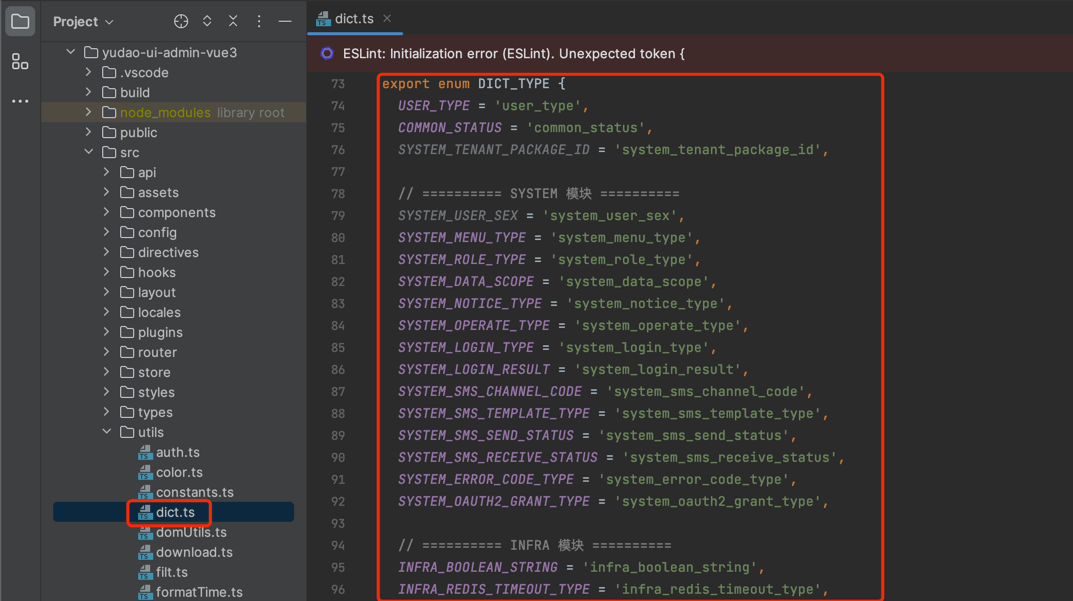
后续如果有新的字典 KEY,需要你自己进行添加。
3. DictTag 字典标签
<dict-tag /> 组件,翻译字段对应的字典展示文本,并根据 colorType、cssClass 进行高亮。使用示例如下:
html
    <!--
        type: 字典 KEY
        value: 字典值
    -->
    <dict-tag :type="DICT_TYPE.SYSTEM_LOGIN_TYPE" :value="row.logType" />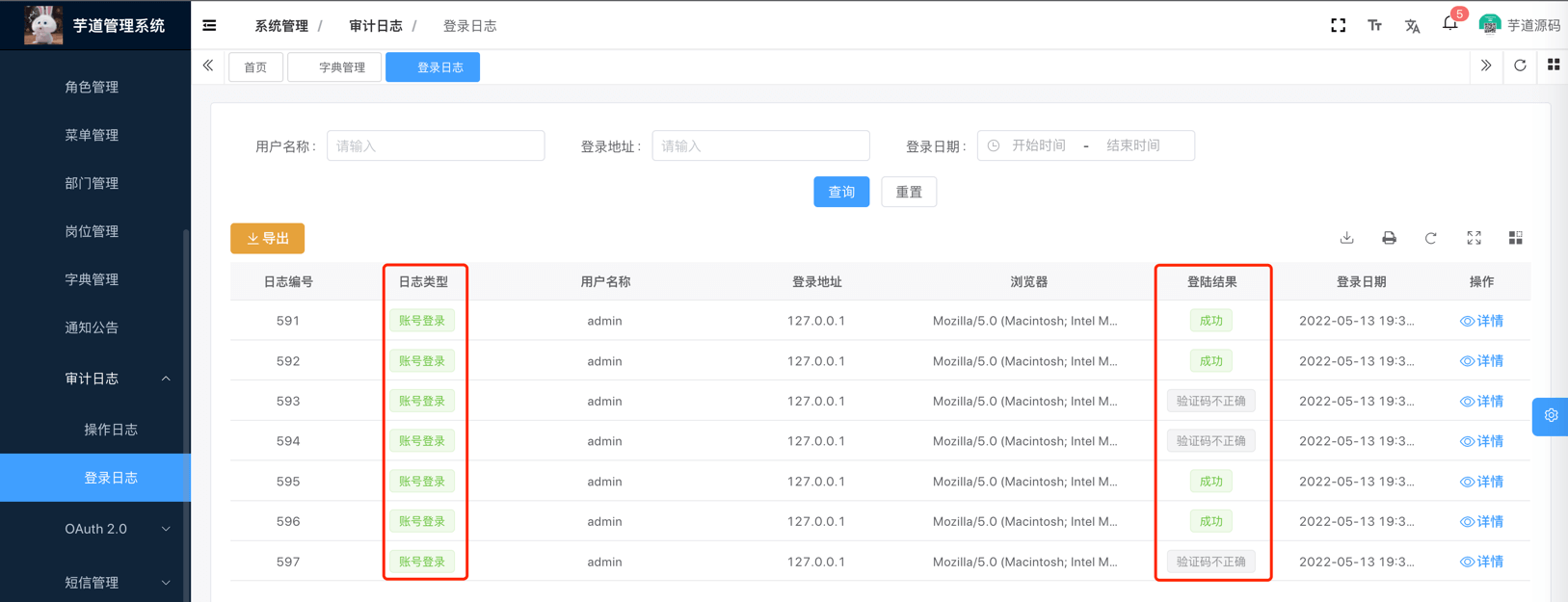
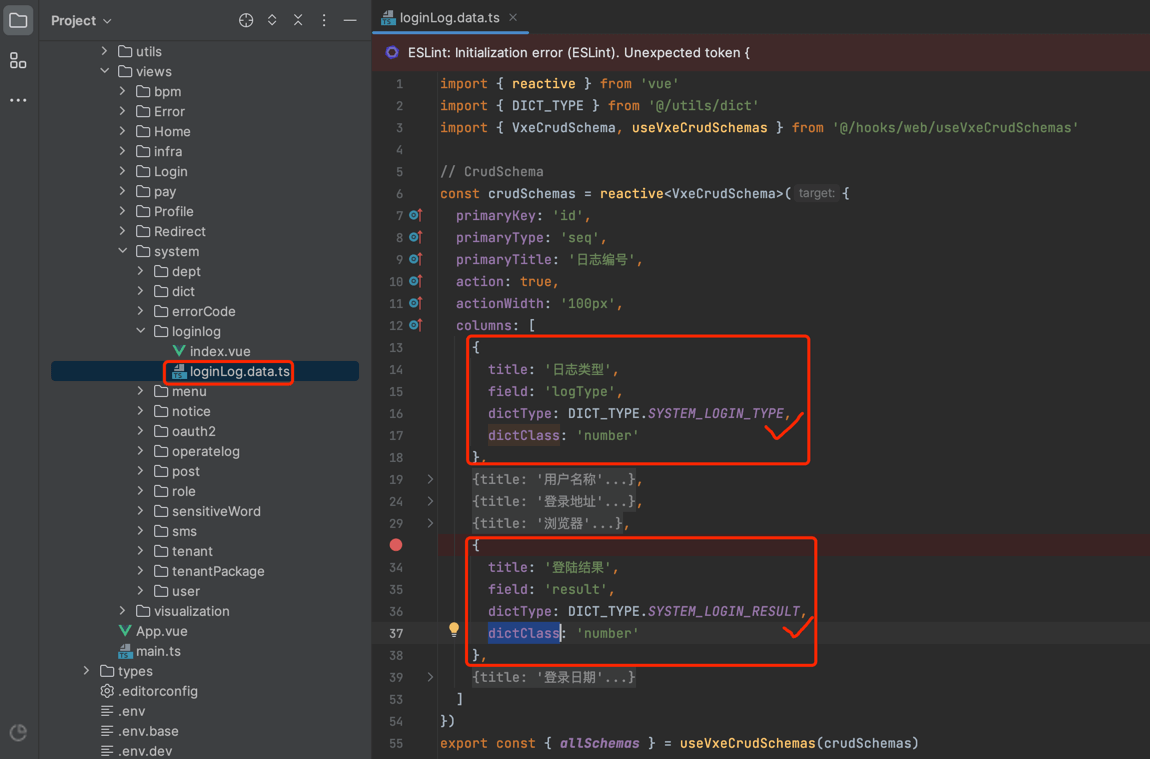
【推荐】注意,一般情况下使用 CRUD schemas 方式,不需要直接使用 <dict-tag />,而是通过 columns 的 dictType 和 dictClass 属性即可。如下图所示:
4. 字典工具类
在 dict.ts 文件中,提供了字典工具类,方法如下:
js
    // 获取 dictType 对应的数据字典数组【object】
    export const getDictOptions = (dictType: string) => {{ /** 省略代码 */ }

    // 获取 dictType 对应的数据字典数组【int】
    export const getIntDictOptions = (dictType: string) => { /** 省略代码 */ }

    // 获取 dictType 对应的数据字典数组【string】
    export const getStrDictOptions = (dictType: string) => { /** 省略代码 */ }

    // 获取 dictType 对应的数据字典数组【boolean】
    export const getBoolDictOptions = (dictType: string) => { /** 省略代码 */ }

    // 获取 dictType 对应的数据字典数组【object】
export const getDictObj = (dictType: string, value: any) => { /** 省略代码 */ }结合 Element Plus 的表单组件,使用示例如下:
html
    <template>
      <!-- radio 单选框 -->
      <el-radio
        v-for="dict in getIntDictOptions(DICT_TYPE.COMMON_STATUS)"
        :key="dict.value"
        :label="parseInt(dict.value)"
      >
        {{dict.label}}
      </el-radio>

      <!-- select 下拉框 -->
      <el-select v-model="form.code" placeholder="请选择渠道编码" clearable>
        <el-option
          v-for="dict in getStrDictOptions(DICT_TYPE.SYSTEM_SMS_CHANNEL_CODE)"
          :key="dict.value"
          :label="dict.label"
          :value="dict.value"
        />
      </el-select>
    </template>
    <script setup lang="tsx">
    import { DICT_TYPE, getIntDictOptions, getStrDictOptions } from '@/utils/dict'
    </script>